The manual.
Every tab, button and setting in the AFK Screensaver app. Click a numbered dot on a screenshot to jump to what it does.
Quick answers
- How do I change the scene order?Drag a scene’s tile along the strip at the bottom of a playlist and drop it on another tile. Then set the order to In order, or it keeps shuffling.
- How do I make AFK my screensaver?Click the dot that says “Not your screensaver yet” at the top right, then Set as my screensaver.
- How long does each scene play?Click its tile, then drag Plays for in the panel on the right.
- How do I remove a scene from a playlist?Hover its tile and click the X in the corner, or select it and press Remove at the bottom of its settings.
- How do I use my own photos?Add Ken Burns or Polaroids to a playlist, select it, and press Choose a folder.
- Can I get the screensaver on my desktop?Yes: add scenes on the Wallpaper tab and switch on Play on my desktop.
- How do I put a scene on every monitor?Settings → Displays sets the default; any scene can choose its own under Screens.
- Can a scene play only at night, or when it rains?Yes: select it and pick the times, days or weather under Plays when.
- How do I make my own scene?The Create tab walks you through it with Claude. No coding needed.
- Can I change someone else’s scene?Yes: select it in your Library and press Remix. Your copy credits the original.
Getting started
- Install from Steam and open AFK Screensaver from your Steam library. The app opens on the Screensaver tab with the built-in scenes already in your playlist.
- Make it your screensaver. At the top right it says Not your screensaver yet. Click it, then press Set as my screensaver. The dot turns green and it says Your screensaver.
- Pick what plays. Remove scenes you don’t want, add more from the Library, and drag them into the order you like.
- Try it. Press Play the screensaver to see the whole playlist full screen, exactly as it plays when you’re away. Move the mouse to stop.
The app works offline. Steam is only needed for the Workshop, your profile, achievements and Steam Cloud presets.
The top bar
The same bar sits across the top of every screen.
- Logo Opens About: the version, credits and a link to this site.
- Screensaver, Wallpaper, OBS Your three playlists. Each has its own scenes, order and settings.
- Library Every scene you have, and the Steam Workshop.
- Create Make your own scene with Claude, or from a video.
- Achievements Your progress toward Steam achievements.
- Screensaver status Green means AFK is your Windows screensaver. Click it to go to the screensaver settings.
- Profile Your Steam name, or Offline when the app wasn’t opened from Steam.
- Gear Settings.
Playlists
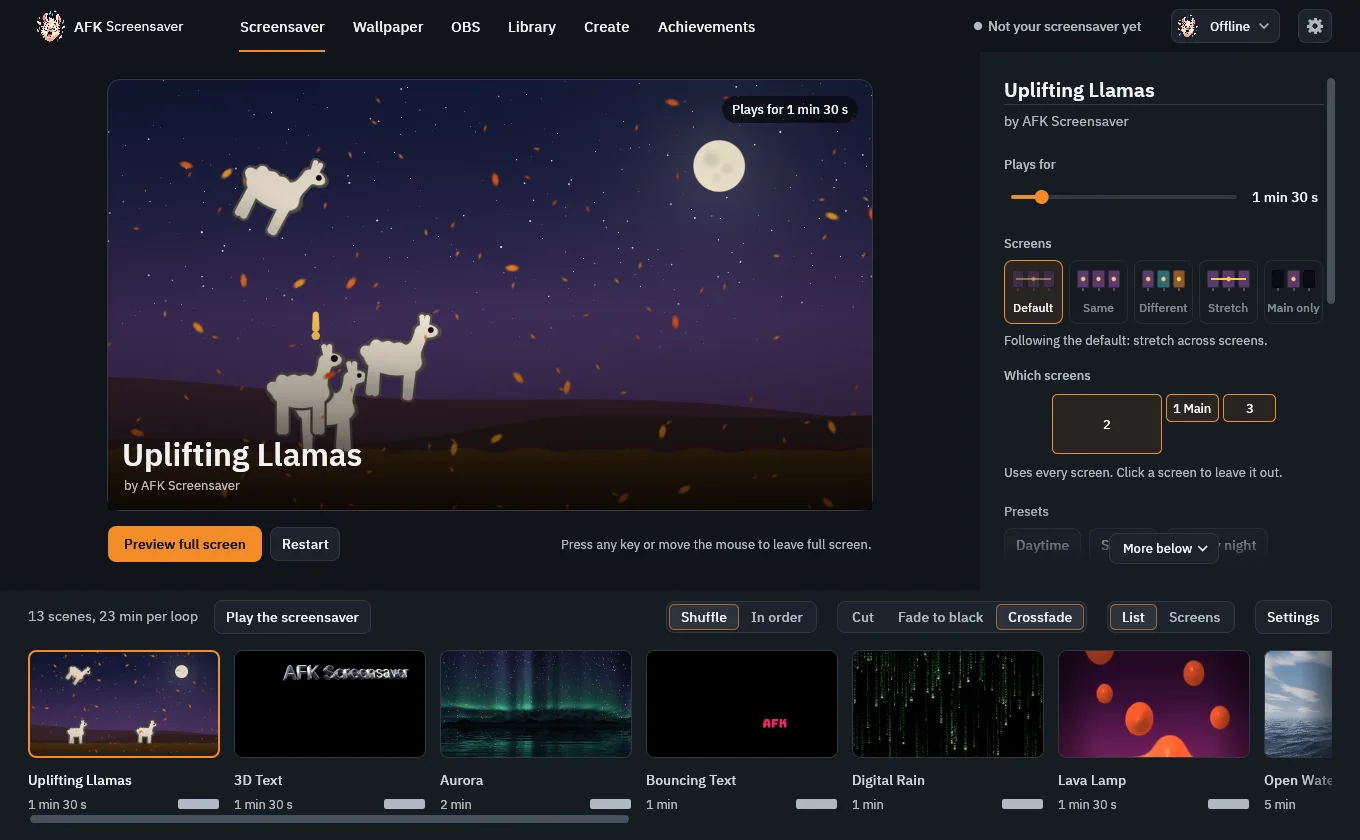
There are three playlists, one per tab: Screensaver plays when Windows goes idle, Wallpaper plays on your desktop behind your windows, and OBS plays in the AFK source in OBS Studio. A scene can be in any of them, with different settings in each.
- Preview The selected scene, playing live with its current settings.
- Preview full screen Shows just this scene full screen. Any key or mouse move leaves.
- Restart Starts the scene over from the beginning.
- Scene settings Everything about the selected scene in this playlist. See A scene’s settings below.
- Summary How many scenes, and how long one pass through the playlist takes.
- Play the screensaver Runs the whole playlist full screen, as it plays when you’re away. Screensaver tab only.
- Shuffle / In order Shuffle plays scenes in a random order. In order follows the filmstrip, left to right.
- Cut / Fade to black / Crossfade How one scene changes into the next.
- List / Screens List is the filmstrip. Screens shows a timeline of what each monitor plays (with more than one screen).
- Settings Jumps to this playlist’s page in Settings.
- A scene tile Click to select it. Drag it onto another tile to reorder. The X in its corner removes it from the playlist.
- The + tile At the end of the strip (scroll right): opens the Library to add more scenes.
Reorder scenes
Press and hold a tile in the filmstrip, drag it, and drop it on another tile. An orange line shows where it will land. The new order is used when the playlist is set to In order; on Shuffle it’s random each time.
Add and remove scenes
Click the + tile at the end of the filmstrip, or go to the Library, pick a scene, and press Add to Screensaver playlist(the button names whichever playlist you came from). Adding the same scene twice is fine: use Duplicate to make, say, an amber and a green version. To remove one, hover its tile and click the X. Removing from a playlist doesn’t delete the scene from your library.
An empty playlist
With nothing in it, a playlist shows Nothing is playing and a Browse the library button. An empty OBS playlist plays Uplifting Llamas.
A scene’s settings
Select a tile in a playlist and its settings fill the panel on the right. They belong to that one copy of the scene in that playlist.
- Name
- The title at the top is editable. Click it to rename this copy, handy when you have two versions of one scene.
- Plays for
- How long the scene runs before the next one. Use the scene’s default puts it back. Video scenes play until the video ends unless you pick a time; Play until the video ends resets that.
- Screens
- Default, Same, Different, Stretch or Main only. See More than one screen.
- Which screens
- With more than one monitor: click a screen to leave it out. Screens it doesn’t use stay black.
- Plays when
- Keep a scene for the right moment: a time of day (Morning, Afternoon, Evening, Night), Weekdays or Weekends, and any kinds of weather. It only plays when all of them fit, and plays first when its moment comes. If nothing in the playlist fits, everything plays, so your screen never goes dark. Weather needs your place set in Settings → Live data.
- Presets
- Looks the scene comes with. Click one to use it. + Save preset keeps your current settings as your own preset, marked with a ★. Right-click one of yours to Update with these settings or Delete it. Your presets follow you to other PCs through Steam Cloud.
- The scene’s own settings
- Colors, speed, text and so on, different for every scene. Hover a setting’s name for a hint, where the scene gives one.
- Photos
- For Ken Burns and Polaroids: Choose a folder, then Delay between photos and Fade in speed.
- Fonts
- Choose a font picks from Built in, On this PC or Google Fonts (type to search; it downloads once).
- Sound
- For video scenes: Play the video’s sound. With several screens, only the main one plays sound. Previews in the app stay silent.
- Set your place
- Scenes that use weather or daylight show Set your place in Settings until you do. See Live data.
- Duplicate · Reset settings · Remove
- At the bottom of the panel. Duplicate makes a second copy with its own settings, Reset settings goes back to the scene’s defaults, and Remove takes it out of this playlist.
If a scene crashes the screensaver, it’s flagged here. After three crashes it’s turned off; Turn it back on gives it another chance.
More than one screen
Settings → Displays sets what scenes do with your monitors by default. Any scene can override it under Screens in its settings.
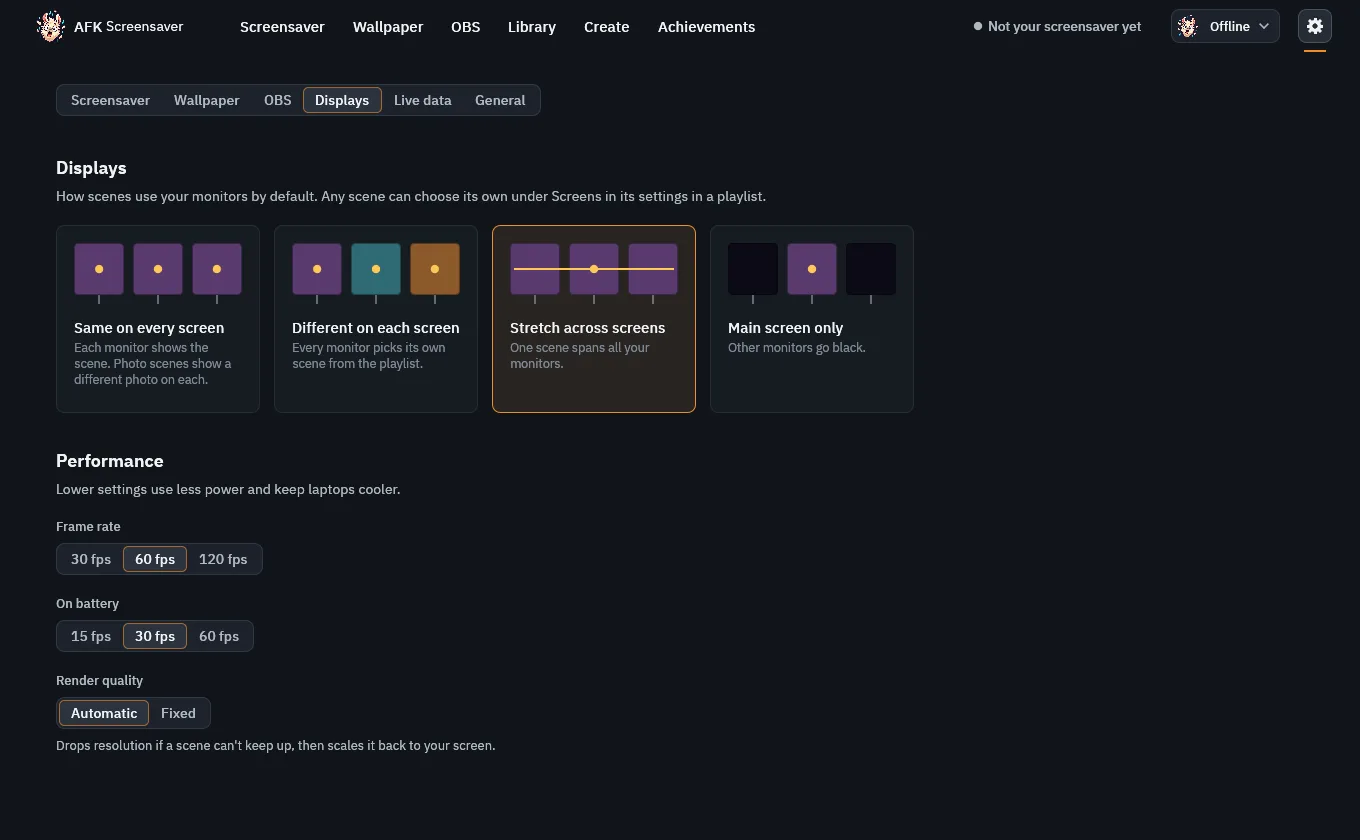
- Same on every screen Each monitor shows the scene. Photo scenes show a different photo on each.
- Different on each screen Every monitor picks its own scene from the playlist.
- Stretch across screens One scene spans all your monitors, laid out the way they sit.
- Main screen only Other monitors go black.
- Frame rate A cap on how often the scene draws. Lower uses less power.
- On battery The cap on a laptop running on battery.
- Render quality Automatic drops resolution if a scene can’t keep up, then scales it back to your screen. Fixed never does.
On a playlist with more than one monitor, Screens (next to List) draws a timeline of what each monitor shows. When the playlist shuffles, Shuffle again shows another possible order.
Wallpaper
The Wallpaper tab is a playlist like the others, plus a Play on my desktop switch. Turn it on and the playlist plays behind your icons and windows. It pauses by itself for full-screen games and while your PC is locked.
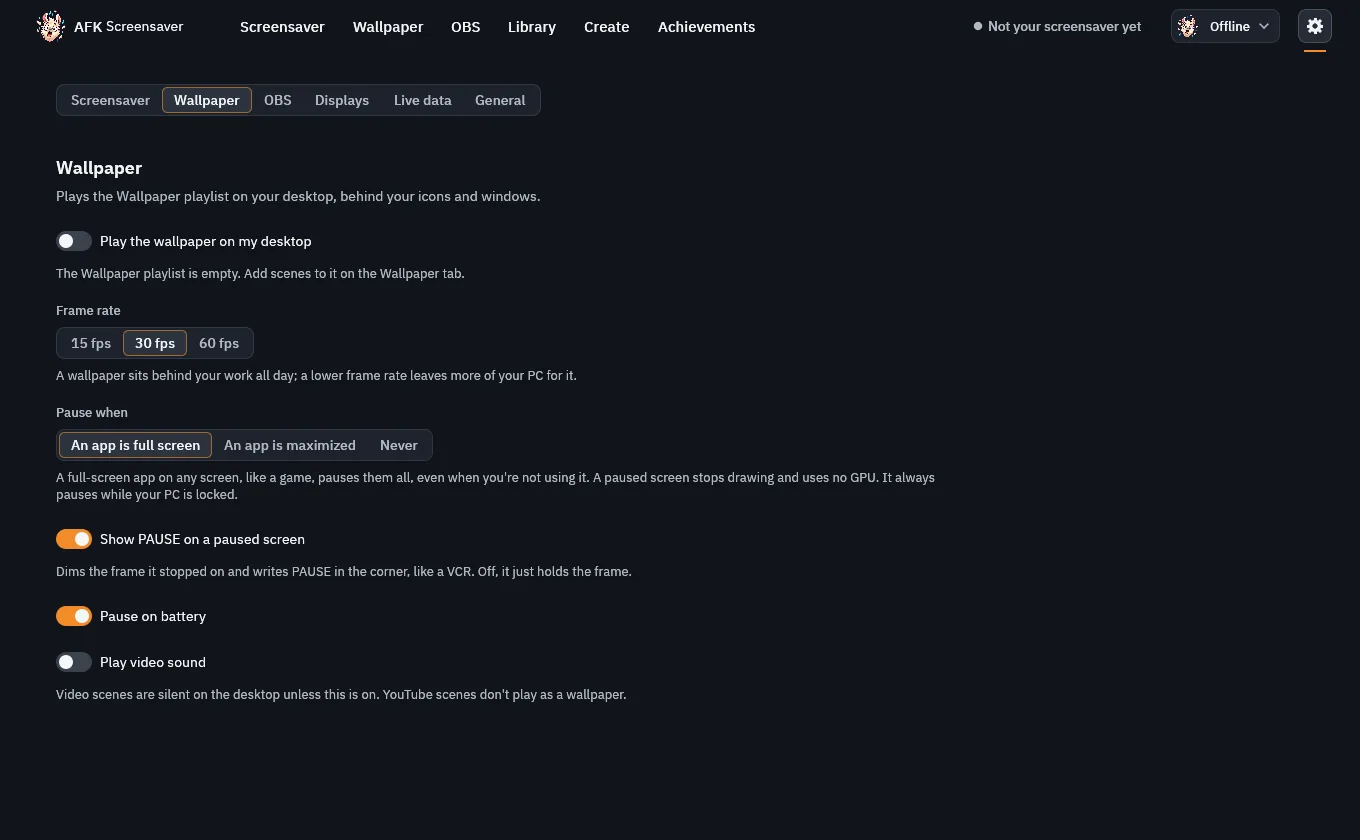
- Play the wallpaper on my desktop The same switch as on the Wallpaper tab.
- Frame rate A wallpaper runs all day, so it has its own, lower cap.
- Pause when An app is full screen, an app is maximized, or never. A paused screen uses no GPU.
- Show PAUSE on a paused screen Dims the frozen frame and writes PAUSE in the corner, like a VCR.
- Pause on battery Stops the wallpaper on a laptop running on battery.
- Play video sound Video scenes are silent on the desktop unless this is on. YouTube scenes don’t play as a wallpaper.
OBS
Put the OBS playlist in your stream or recording as an AFK Screensaver source, drawn straight from your graphics card. Great for “be right back” screens.
- Go to Settings → OBS and press Install the plugin. It doesn’t need admin rights. (No OBS yet? The button says Get OBS Studio.)
- Restart OBS if it was open.
- In OBS, click + under Sources and choose AFK Screensaver.
- Add scenes on the OBS tab. Changes show in OBS within a couple of seconds.
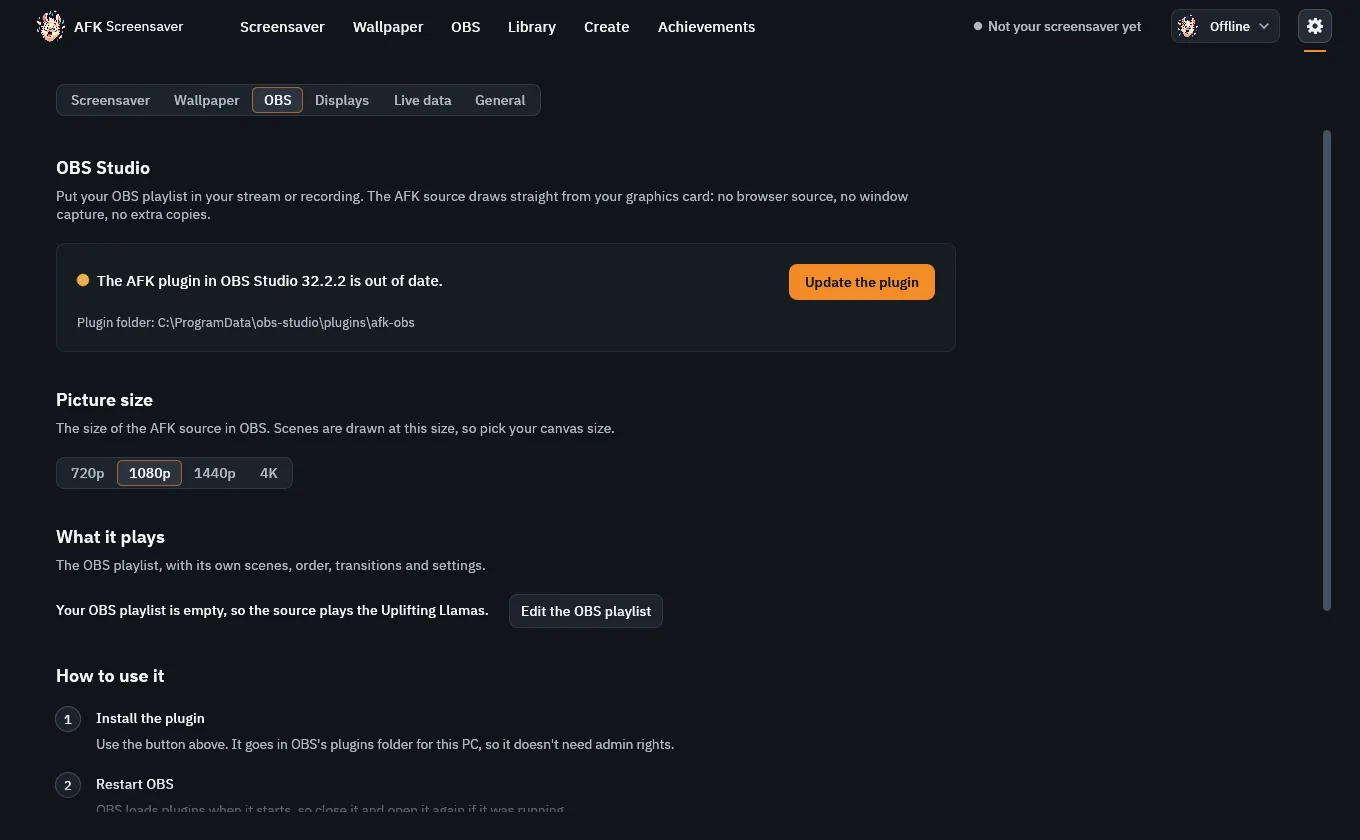
- Install / Update the plugin Installs the AFK plugin into OBS. Once it’s in, Remove and Reinstall appear here.
- Picture size The size the source draws at. Pick your OBS canvas size.
- Edit the OBS playlist Goes to the OBS tab.
The scene runs only while the source is showing, so a hidden source costs nothing. Videos play without sound (OBS captures your PC’s sound itself), and YouTube items are skipped.
Library
Every scene you have: the built-in ones, Workshop subscriptions, and scenes you made or imported. A check mark on a tile means it’s in the current playlist.
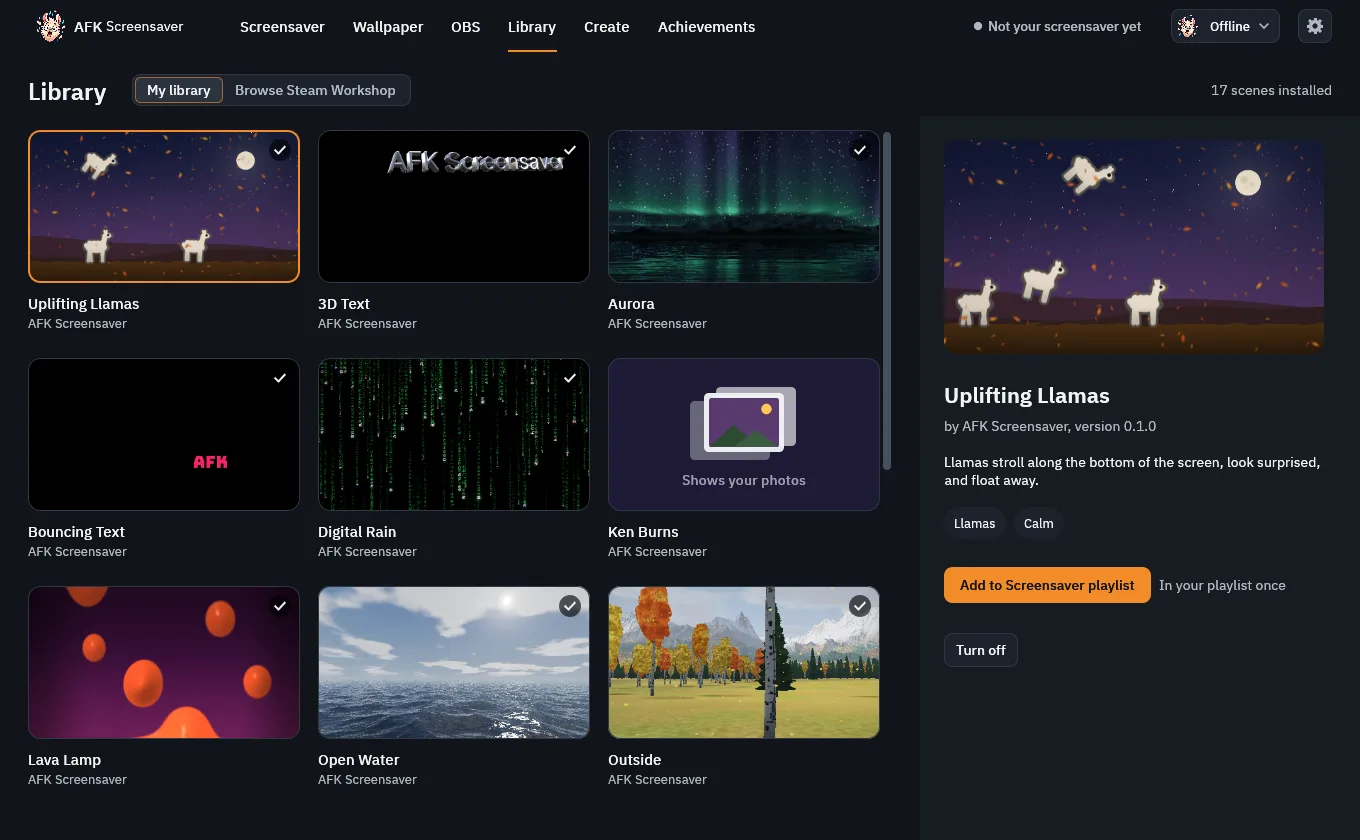
- My library Scenes installed on this PC.
- Browse Steam Workshop Scenes other people made. Sort by Trending, Top rated or Newest, filter by tag, and Subscribe.
- Check mark This scene is in the playlist you came from.
- Add to playlist Adds it to the playlist you came from. Next to it: how many times it’s already in.
- Turn off Keeps it installed but never plays it.
Scenes you added yourself have Delete from library; Workshop scenes have Unsubscribe. The Workshop needs the app opened from Steam.
Create
Make your own screensaver: describe it to Claude and paste the reply in. There’s a full walkthrough on the Create page.
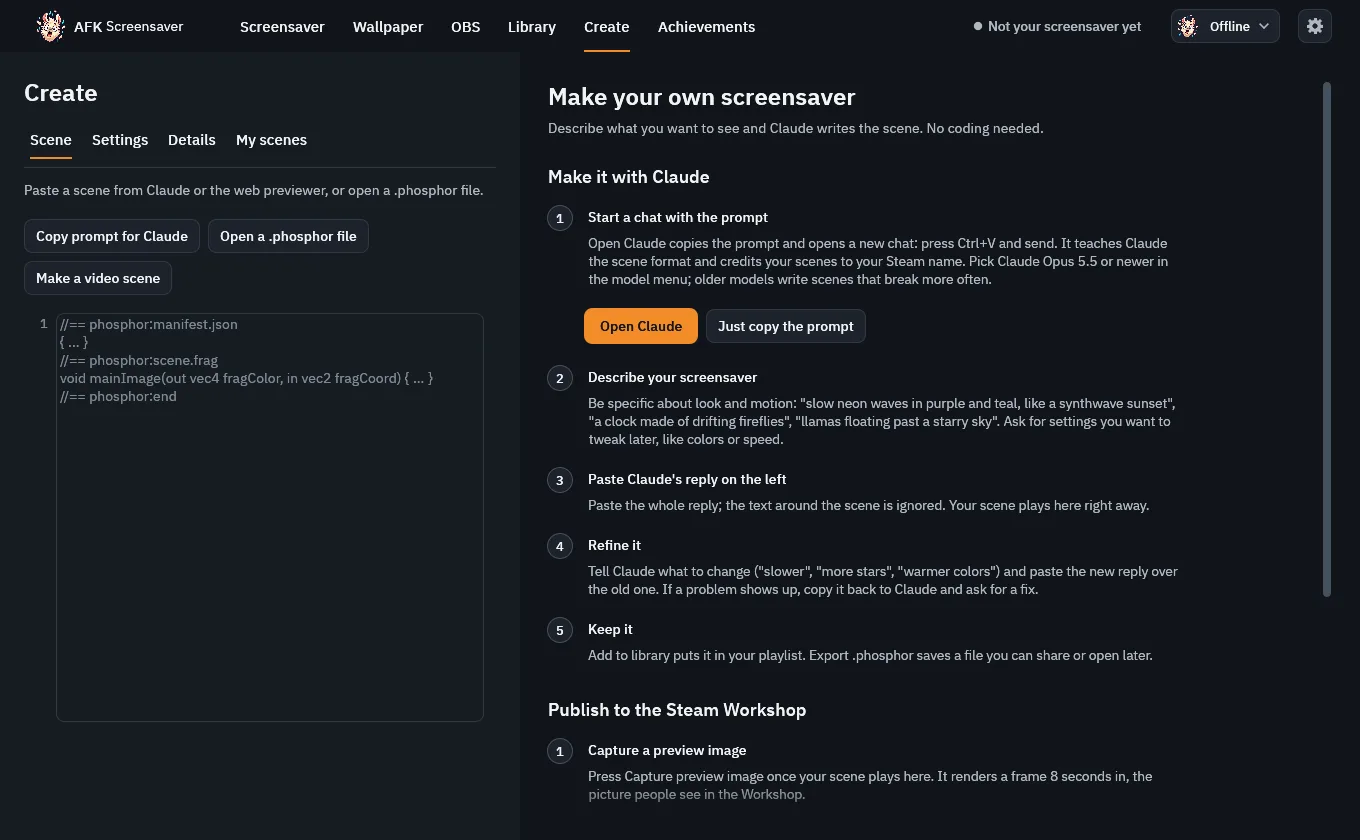
- Scene · Settings · Details · My scenes Paste a scene; try its settings and presets; edit its name and setting names; open scenes you made.
- Copy prompt for Claude Copies the scene creator as a message for a new Claude chat.
- Open a .phosphor file Opens a scene file someone shared.
- Make a video scene Turns a video file into a scene you can play and share.
- Paste box Paste Claude’s whole reply here. The scene plays right away, or problems are listed to send back to Claude.
- Open Claude Copies the prompt and opens a new chat: press Ctrl+V and send.
Once the scene plays, a timeline sits under it: Pause (or Space) stops on a moment, and dragging the bar moves through the scene. A paused preview stays on its moment while you edit, so you can see what a change does.
Under that are Add to library, Use this frame as preview (makes the 1920×1080 picture the Workshop shows from the moment on the timeline),Export .phosphor (a file to share), and Publish to Workshop. If you haven’t picked a preview picture, publishing picks a lively frame for you.
Remix a scene
Select any scene in Library → My library and press Remix. A copy opens in Create under your name, called “… remix”, ready to change. The original stays as it is, and your version credits it: under its name in the app, and in its Workshop description, with a link to the original.
Achievements
Progress counts time the screensaver actually ran. Steam unlocks them the next time it syncs, or right when you get back if Unlock achievements when I get back is on in Settings → General.
Settings
The gear at the top right. Six pages along the top: Screensaver, Wallpaper, OBS, Displays, Live data and General. Wallpaper, OBS and Displays are covered above.
Screensaver
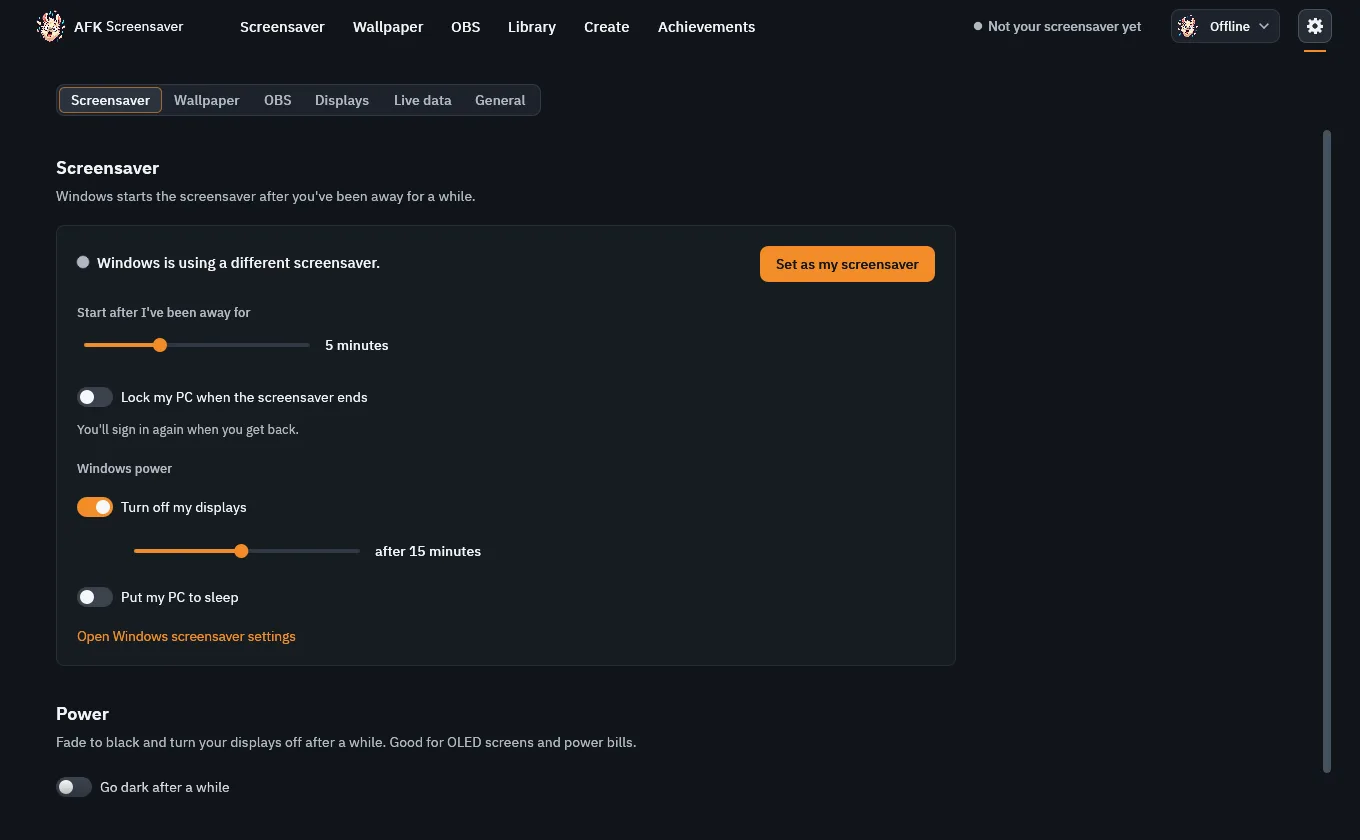
- Set as my screensaver Makes AFK the Windows screensaver. Afterwards, Restore previous screensaver puts back what you had.
- Start after I’ve been away for How long Windows waits before starting it.
- Lock my PC when the screensaver ends You sign in again when you get back.
- Windows power Turn off your displays, or put your PC to sleep, after a while. These are Windows’ own settings.
- Open Windows screensaver settings Windows’ own screensaver dialog.
- Go dark after a while Fades to black and turns your displays off. Good for OLED screens and power bills.
Live data
Some scenes react to your music, your PC, your daylight and your weather. Each gets only what it asks for.
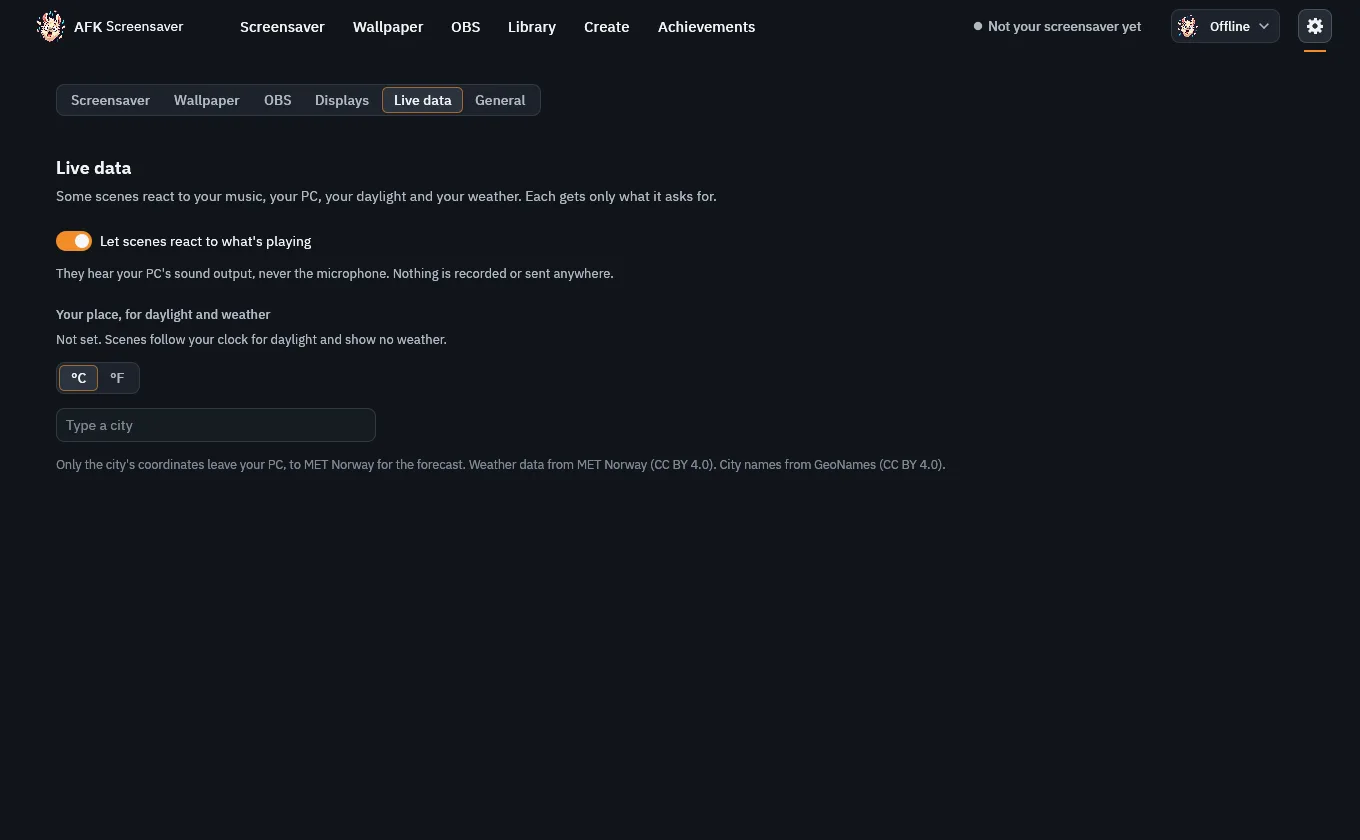
- Let scenes react to what’s playing Scenes like Spectrum hear your PC’s sound output, never the microphone. Nothing is recorded or sent anywhere.
- °C / °F Temperature units for scenes that show the weather.
- Type a city Your place, for daylight and weather. Without it, scenes follow your clock and show no weather. Only the city’s coordinates leave your PC.
General
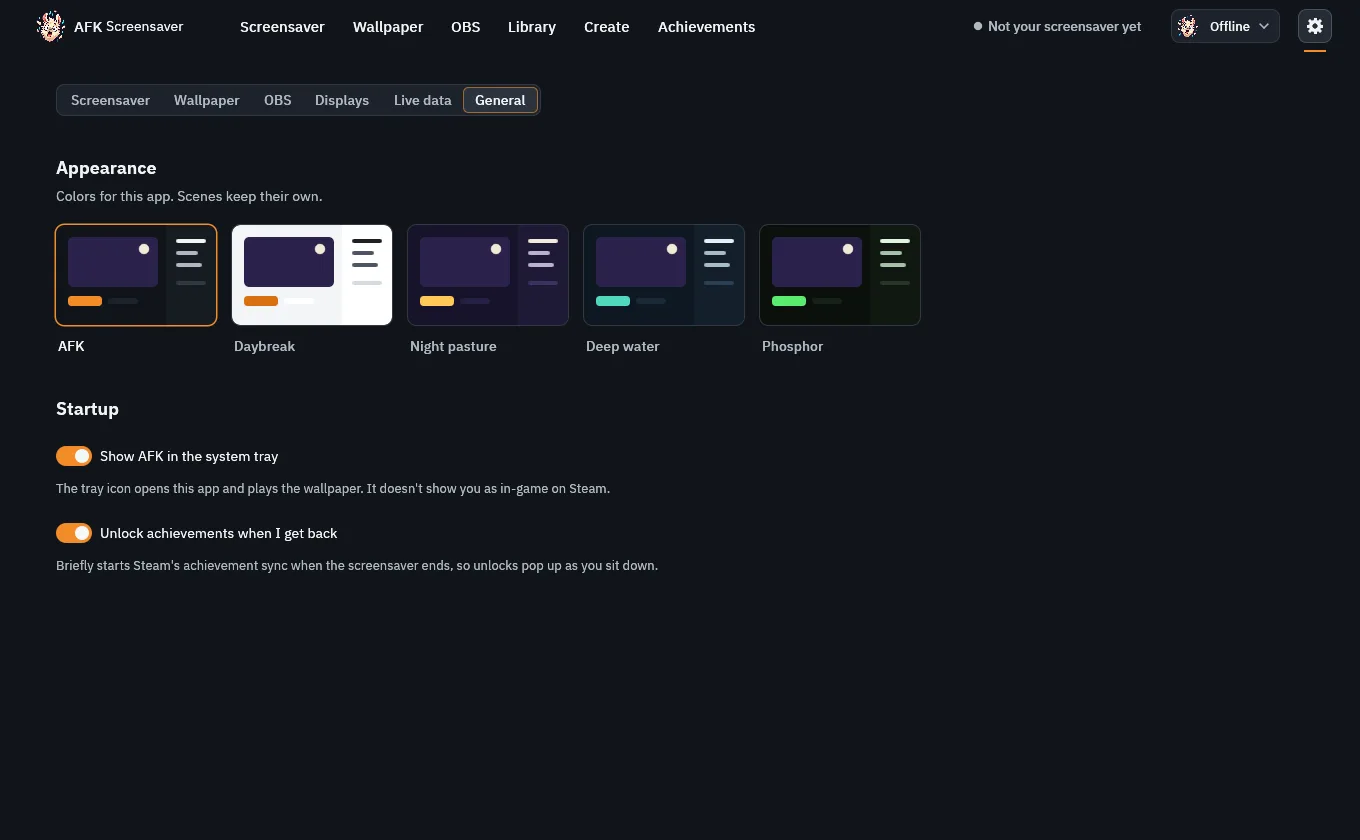
- Appearance Colors for the app: AFK, Daybreak, Night pasture, Deep water or Phosphor. Scenes keep their own.
- Show AFK in the system tray The tray icon opens this app and plays the wallpaper. It doesn’t show you as in-game on Steam.
- Unlock achievements when I get back Briefly starts Steam’s achievement sync when the screensaver ends.
Troubleshooting
- The screensaver never starts
- Check the top bar says Your screensaver. If not, Settings → Screensaver → Set as my screensaver. Some apps (video players, games) keep Windows from going idle while they run.
- A scene is turned off
- It crashed the screensaver three times. Select it in the playlist and press Turn it back on, or remove it.
- “This scene’s files are missing”
- Its folder was deleted. Remove it, or subscribe again on the Workshop to get it back.
- The wallpaper stopped
- It pauses for full-screen apps, a locked PC and battery. See Pause when in Settings → Wallpaper.
- Workshop or profile says Offline
- Open AFK Screensaver from your Steam library. Everything else works without Steam.
- Something else
- Ask us on Discord.
Phosphor reference
Scenes are written in Phosphor: a manifest and a GLSL shader. The Phosphor reference lists everything the engine gives a scene: the manifest schema, the shader contract, every uniform, live data, and the built-in music engine that turns what your PC is playing into a clean spectrum, beats and levels.